Best AI Infographic Generator | Create Viral Infographics for Free

Best AI Infographic Generator

Create Viral Infographics to showcase your ideas, stories, data or any use case. Get started for Free.

Design Your Infographic

Describe your topic and choose an optional visual style blueprint.

Select a layout to clone its design DNA.

Blueprint 1
Blueprint 2
Blueprint 3
Blueprint 4
Blueprint 5
Blueprint 6
Blueprint 7
Blueprint 8
Blueprint 9
Upload
Generation Cost: 3 CreditsFirst use is FREE! (Limited Offer)

Guide to Using the Best AI Infographic Generator

Creating high quality visuals to share your data or stories used to take hours of manual work. You needed design skills, expensive software, and a lot of patience. Now, the ai infographic generator has changed that. You can go from a simple idea to a viral image in seconds.

This guide will show you how to use this ai infographic tool to make stunning visuals. We will cover every feature from picking the right shape to adding your own brand name. If you want a free ai infographic generator to start your project, you are in the right place.

What is an AI Infographic Generator?

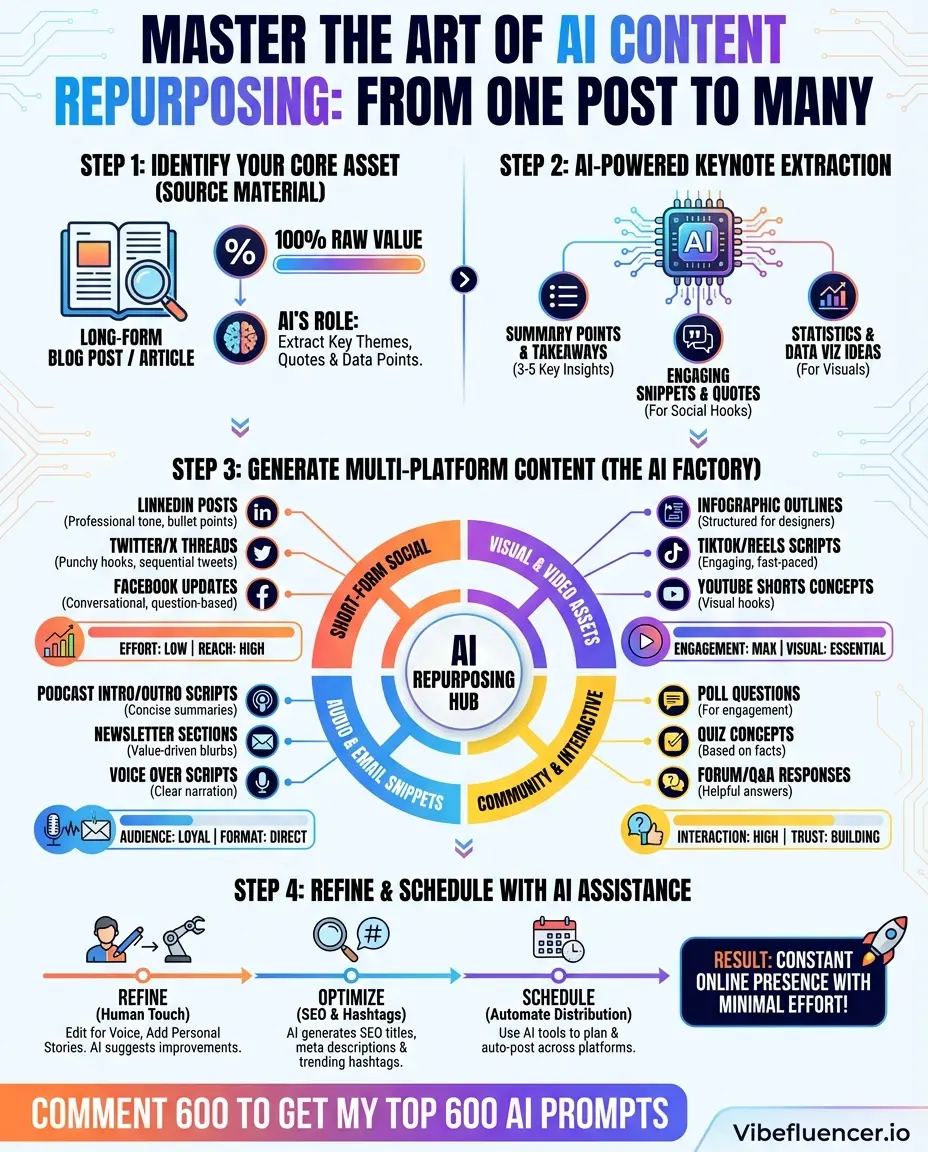
An ai infographic generator is a smart program that takes your text and turns it into a visual layout. It uses data and design rules to place icons, text, and charts where they look best. Instead of starting with a blank page, you start with a finished design.

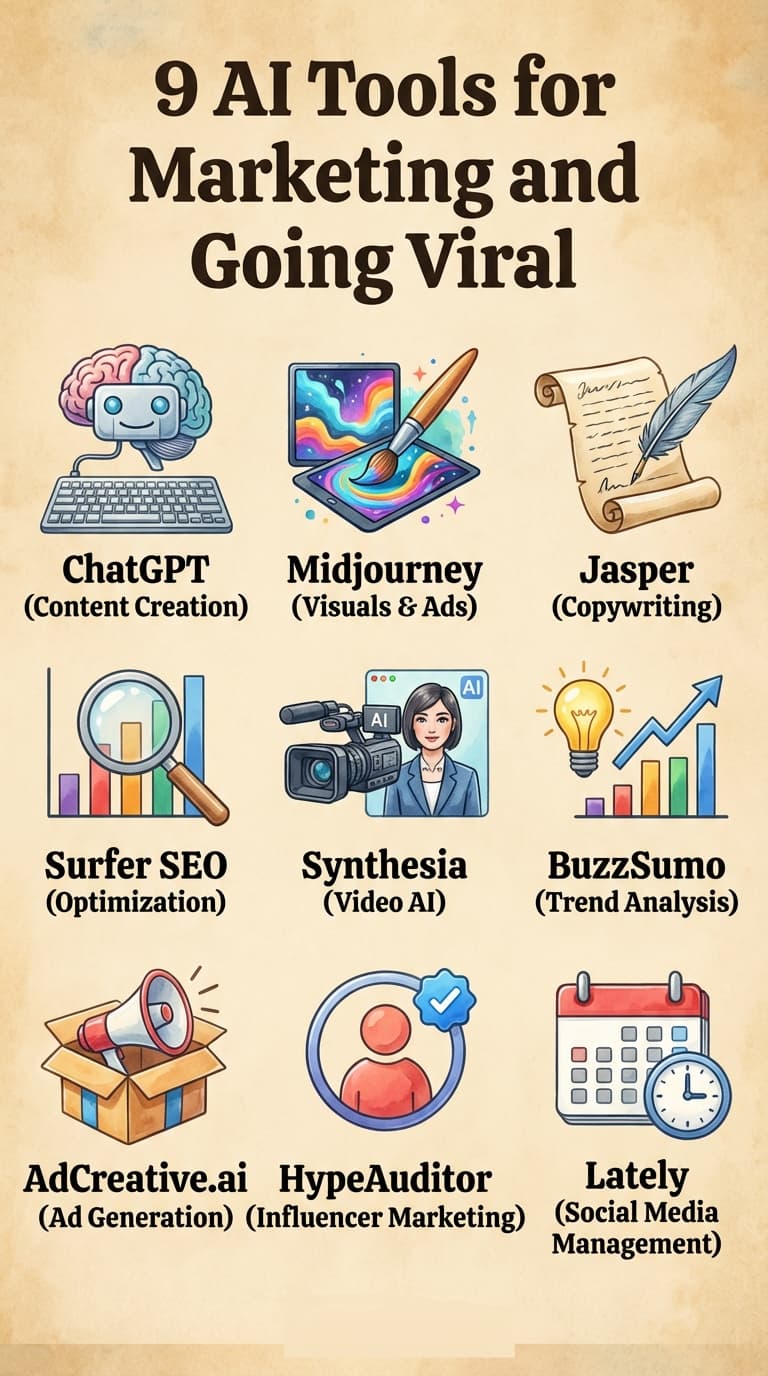
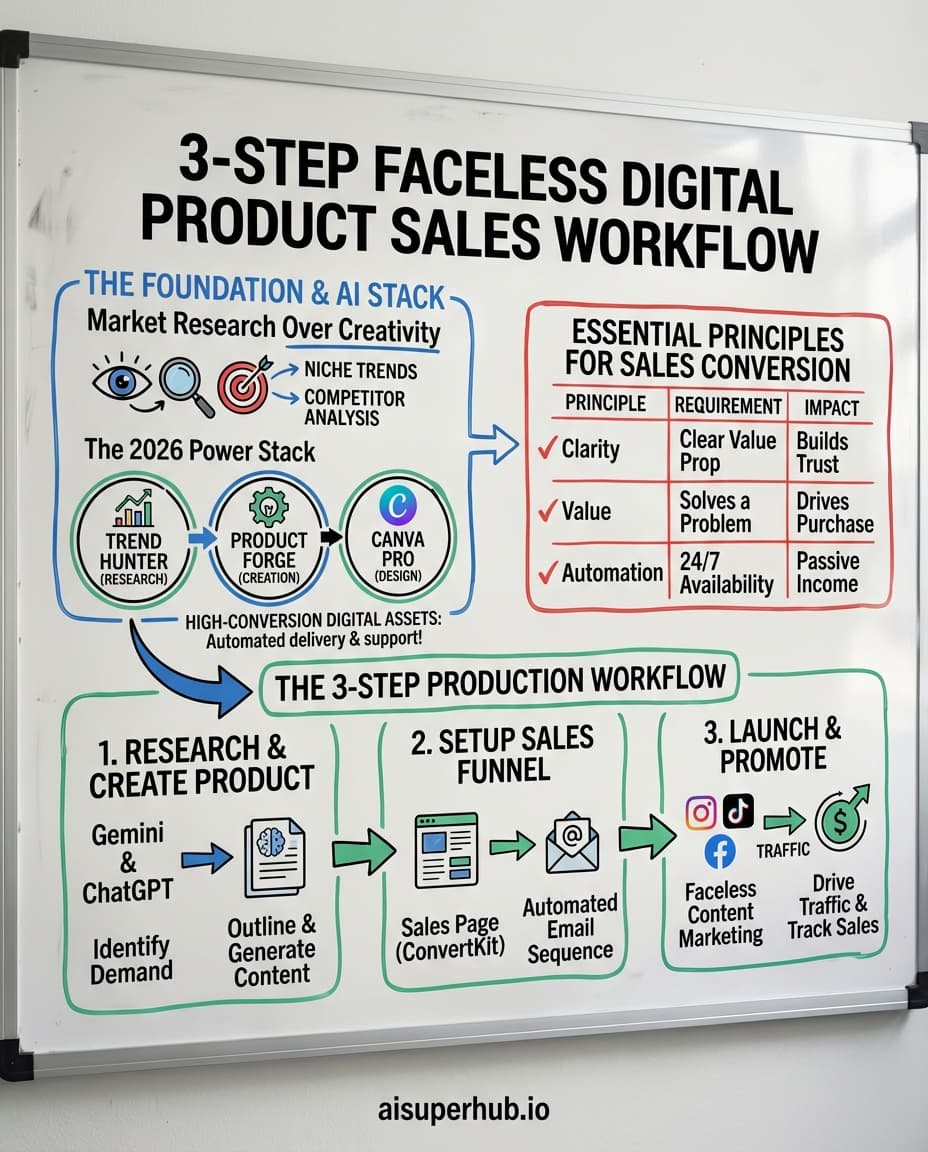
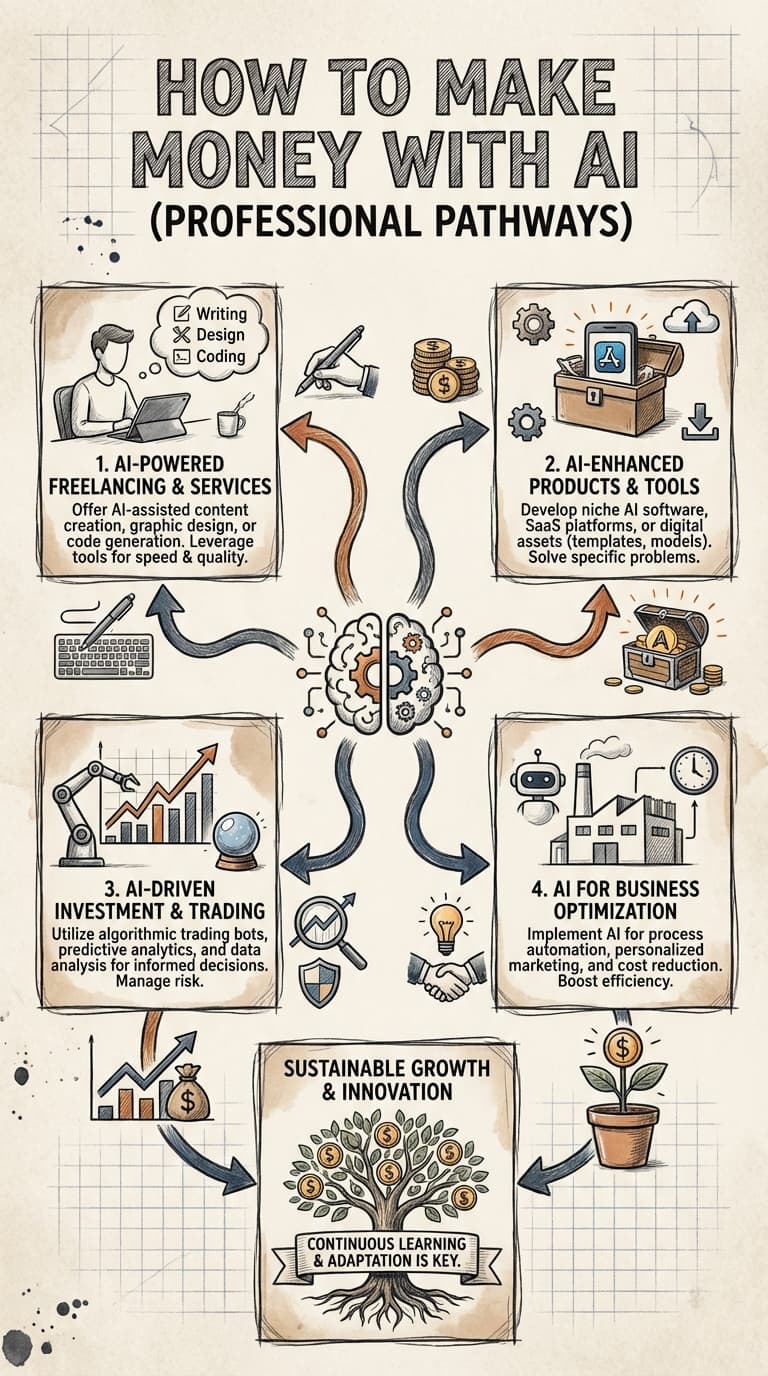
People use an ai infographic creator for many reasons. Teachers use them to explain lessons. Business owners use them to show growth. Social media stars use them to make content that people want to share. Using an ai infographic maker free version allows you to test your ideas before you commit to a final look.

Why Use an AI Infographic Tool?

  1. Speed: You can make a full design in less than a minute.
  2. Ease of use: You do not need to be an artist. If you can type, you can design.
  3. Consistency: The tool keeps colors and fonts looking professional.
  4. Flexibility: You can change the size for any platform.

How to Use the Best AI Infographic Generator Step by Step

Creating your first visual is easy. Follow these steps to get the best results from the ai infographic designer free options available.

Step 1: Define Your Topic and Key Points

The first box you see is for your Topic and Key Points. This is the most important part of the process. The ai infographic generator needs to know what you are talking about.

When you write your topic, be specific. Instead of just saying "Healthy Food," try "Top 5 Benefits of Eating Green Vegetables for Heart Health." Adding key points helps the AI organize the sections. You might list things like vitamins, fiber, and energy levels.

Step 2: Add Extra Instructions

There is an optional box for Extra Instructions. This is where you can tell the ai infographic creator about your specific needs. Do you want the tone to be funny? Do you want a dark background? Write it here. This helps the tool understand your vision better.

Step 3: Choose Your Shape

Not every infographic is the same size. This ai infographic tool gives you four main options:

  • Social (4:5): Great for Instagram posts or Facebook updates.
  • Portrait (9:16): This is the best choice if you need an ai infographic video generator style layout. It fits perfectly on TikTok, Reels, or YouTube Shorts.
  • Widescreen (16:9): Perfect for presentations or blog headers.
  • Square (1:1): The classic size for many social platforms.

Picking the right shape ensures your data is easy to read on the device your audience uses.

Step 4: Select a Visual Style Blueprint

This is a unique feature. A Visual Style Blueprint allows you to "clone" the design DNA of a layout you like. You can browse a gallery of styles. If you see a layout that has a clean look or a cool color scheme, select it. The ai infographic maker free version lets you see how different styles change the feel of your information.

Step 5: Custom Branding and Footer CTA

To make your work look official, use the Custom Branding section. You can add your Logo or Brand Name. You can also include a Footer Call to Action. This is a small bit of text at the bottom that tells people what to do next. For example, "Visit our website for more tips." This makes the free ai infographic generator output look like it was made by a professional design team.

Making the Most of the AI Infographic Video Generator

Many people search for an ai infographic video generator. While traditional infographics are static images, the Portrait (9:16) format is built for video platforms. Once you generate your infographic in this size, you can easily drop it into a video editor.

Because the text is already organized and the icons are placed perfectly, your video will look clean. You can add music or a voiceover to the image. This is a fast way to make educational content for social media without spending all day on a video.

Tips for Better Prompts

To get the best results from your ai infographic generator free experience, follow these prompt tips:

  • Use numbers: "7 steps to save money" works better than "How to save money."
  • Be clear about the audience: Mention if the info is for kids or experts.
  • List your data: If you have specific stats, put them in the key points box.
  • Keep it simple: Do not use too many complex words. The AI likes clear instructions.

Use Cases for the AI Infographic Creator

Small Businesses

Make sales charts or "how it works" guides for products. Builds massive trust with customers.

Teachers & Students

Summarize history projects or turn boring dates into colorful timelines. Visual learning is better.

Health & Wellness

Share workout routines or meal plans. Visuals are much easier to follow than long emails.

Understanding the Generation Cost

Every time you click "Design Your Infographic," it costs 3 Credits. This covers the computing power used by the ai infographic generator to build your custom layout. You can see your balance and get started for free to see how the system works. Using credits ensures that the tool stays fast and high quality for everyone.

Comparison: Why AI Beats Manual Design

FeatureManual DesignAI Infographic Tool
Time Taken2 to 5 hoursUnder 1 minute
CostHigh (Software/Designer)Low (Credit based)
Skill LevelProfessional neededNo skills needed
ChangesDifficult to redoEasy to regenerate

Frequent Questions About AI Infographic Generators

Is there an ai infographic generator free to use?

Yes, you can get started for free. Most tools give you a few credits to test the features. This allows you to see the quality of the ai infographic maker free output before you decide to buy more credits.

How do I make a video from an infographic?

You should select the Portrait (9:16) size. This is the standard for mobile videos. Use the ai infographic video generator style layout to create your visual. After you download it, you can add it to any video app to add motion or sound.

Can I add my own logo?

Yes. Use the Custom Branding section. You can type in your brand name or upload a logo. This ensures that when your infographic goes viral, people know it came from you.

What is a Visual Style Blueprint?

It is like a template but smarter. Instead of just a layout, it copies the "DNA" of a design. This includes the color palette, font styles, and how icons are used. It makes your ai infographic creator experience much more predictable and professional.

Which aspect ratio is best for Instagram?

For a standard post, use the Social (4:5) or Square (1:1) shapes. For Stories or Reels, always choose Portrait (9:16). The ai infographic tool makes it easy to switch between these.

Can I generate an infographic in different languages?

The ai infographic generator understands many languages. Just type your topic and key points in the language you want, and the AI will build the visual using that text.

How many credits does it cost?

It costs 3 credits to generate one infographic. This includes the full design, branding, and chosen layout.

Do I need to download software?

No. This is a web based ai infographic tool. You can use it in your browser on a computer or a phone.

Best Practices for Infographic SEO

If you plan to post your infographic on a website, follow these tips to help it rank.

  1. Use a descriptive file name: Save your image as "how to use ai infographic generator.png" instead of "image1.png".
  2. Add Alt Text: Tell search engines what is in the image. Use keywords like ai infographic maker free in the description.
  3. Write a summary: Don't just post the image. Write 300 words explaining the data inside the infographic.
  4. Make it shareable: Add buttons so people can easily pin it to Pinterest or share it on Twitter.

Final Thoughts on the AI Infographic Designer Free Experience

The world is moving toward visual content. People read less text and look at more images. Using the best ai infographic generator helps you keep up with this trend. Whether you are a business owner or a creator, these tools give you the power to share your ideas clearly.

Create Your Infographic Now!